Occupancy profile
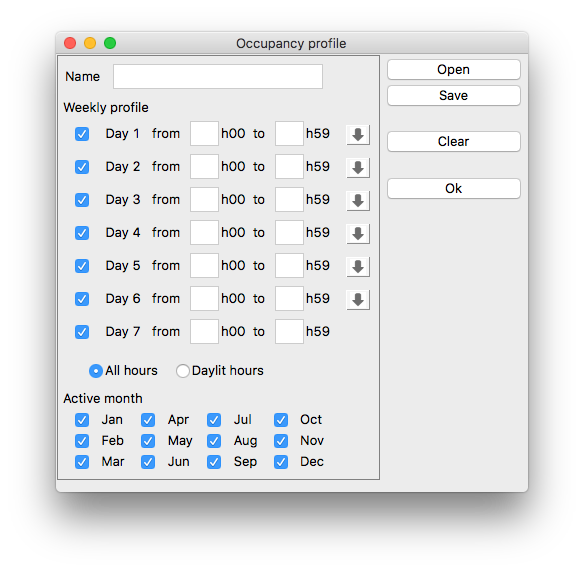
Occupancy profile dialog permits to define a detailed profile of
occupacy for the project. Occupancy profile dialog can be opened
from
Daylight Autonomy
by selecting 'Custom' in list of profiles.
-
Name
- Name of the profile, displayed in the list of profiles of the
DA panel.
-
Weekly profile
- For each day of the week: start and end hours of the period.
The left check box select the day for the profile (ie. for a 5
days a week profile, check the 5 first days). Use the right
arrow to duplicates the parameters of the day on following
lines.
-
All hours / Daylit hours
- Select Daylit hours to limit the occupied period to actual
daylight hours. For example 0h00 to 23h59 will consider a full
occupied period of 24h in 'All hours' mode, and an occupancy
from sunrise to sunset in 'Daylit hours' mode.
-
Activity months
- Select occupied months of the year.
Right side buttons:
-
Load
- Load occupancy profile from a file.
-
Save
- Save occupancy profile to a file.
-
Clear
- Clear all dialog entries.
-
Ok
- Confirm occupancy profile selection. The profile is added into
dialog drop-down control and selected.